

《零基礎入門學習Python》第088講:Pygame:摩擦摩擦
Play The Ball這個小遊戲現在已經有了背景音樂,有了小球,有了碰撞檢測,接下來我們要做的就是摩擦摩擦。
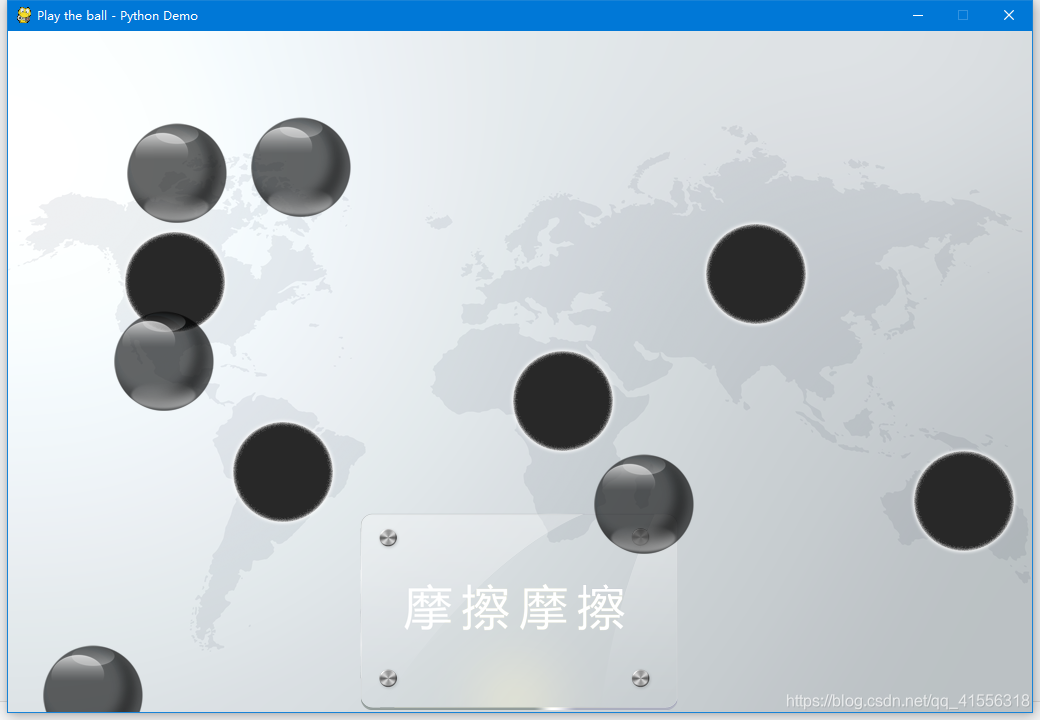
我們有一塊玻璃面板的圖片,如下圖所示:為了方便,我把文字也打上去了。(是透明的哦)
(還是老樣子,有需要素材的可以在評論區留下郵箱或者其他的啥)


現在我們的要求就是把這塊玻璃面板加載到程序底部的中央位置。
-
import pygame
-
import sys
-
from pygame.locals import *
-
from random import *
-
-
# 球类继承自Spirte类
-
class Ball(pygame.sprite.Sprite):
-
def __init__(self, image, position, speed, bg_size):
-
# 初始化动画精灵
-
pygame.sprite.Sprite.__init__(self)
-
-
self.image = pygame.image.load(image).convert_alpha()
-
self.rect = self.image.get_rect()
-
# 将小球放在指定位置
-
self.rect.left, self.rect.top = position
-
self.speed = speed
-
self.width, self.height = bg_size[0], bg_size[1]
-
self.radius = self.rect.width / 2 #增加半径属性
-
-
def move(self):
-
self.rect = self.rect.move(self.speed)
-
-
# 如果小球的左侧出了边界,那么将小球左侧的位置改为右侧的边界
-
# 这样便实现了从左边进入,右边出来的效果
-
if self.rect.right < 0:
-
self.rect.left = self.width
-
-
elif self.rect.left > self.width:
-
self.rect.right = 0
-
-
elif self.rect.bottom < 0:
-
self.rect.top = self.height
-
-
elif self.rect.top > self.height:
-
self.rect.bottom = 0
-
##############################################################
-
class Glass(pygame.sprite.Sprite):
-
def __init__(self, glass_image, bg_size):
-
#初始化动画精灵
-
pygame.sprite.Sprite.__init__(self)
-
-
self.glass_image = pygame.image.load(glass_image).convert_alpha()
-
self.glass_rect = self.glass_image.get_rect()
-
self.glass_rect.left, self.glass_rect.top = \
-
(bg_size[0] - self.glass_rect.width) // 2, \
-
bg_size[1] - self.glass_rect.height
-
##############################################################
-
-
def main():
-
pygame.init()
-
-
ball_image = "gray_ball.png"
-
bg_image = "background.png"
-
glass_image = "glass.png"
-
-
running = True
-
-
#添加背景音乐
-
pygame.mixer.music.load('bg_music.ogg')
-
pygame.mixer.music.set_volume(0.2)#设置音量
-
pygame.mixer.music.play(1, 160)#播放
-
-
#加载音效
-
winner_sound = pygame.mixer.Sound("winner.wav")
-
winner_sound.set_volume(0.2)
-
loser_sound = pygame.mixer.Sound("loser.wav")
-
loser_sound.set_volume(0.2)
-
laugh_sound = pygame.mixer.Sound("laugh.wav")
-
laugh_sound.set_volume(0.2)
-
hole_sound = pygame.mixer.Sound("hole.wav")
-
hole_sound.set_volume(0.2)
-
-
#背景音乐会贯穿游戏的始终,背景音乐完整播放一次我们视为游戏的时间,
-
-
#音乐播放完时,游戏结束
-
GAMEOVER = USEREVENT
-
pygame.mixer.music.set_endevent(GAMEOVER)
-
-
# 根据背景图片指定游戏界面尺寸
-
bg_size = width, height = 1024, 681
-
screen = pygame.display.set_mode(bg_size)
-
pygame.display.set_caption("Play the ball - Python Demo")
-
-
background = pygame.image.load(bg_image).convert_alpha()
-
-
# 用来存放小球对象的列表
-
balls = []
-
group = pygame.sprite.Group()
-
-
# 创建五个小球
-
for i in range(5):
-
# 位置随机,速度随机
-
position = randint(0, width-100), randint(0, height-100)
-
speed = [randint(-10, 10), randint(-10, 10)]
-
ball = Ball(ball_image, position, speed, bg_size)
-
while pygame.sprite.spritecollide(ball, group, False, pygame.sprite.collide_circle):#在创建小球这里必须进行一下碰撞检测
-
ball.rect.left, ball.rect.top = randint(0, width-100), randint(0, height-100)
-
balls.append(ball)
-
group.add(ball)
-
-
###########################################################
-
glass = Glass(glass_image, bg_size)
-
###########################################################
-
-
clock = pygame.time.Clock()
-
-
while running:
-
for event in pygame.event.get():
-
if event.type == QUIT:
-
sys.exit()
-
-
elif event.type == GAMEOVER: #判断事件是否为我们自定义的GAMEOVER事件
-
loser_sound.play()
-
pygame.time.delay(2000)#暂停2秒
-
laugh_sound.play()
-
running = False
-
-
screen.blit(background, (0, 0))
-
#############################################
-
screen.blit(glass.glass_image, glass.glass_rect)
-
#############################################
-
-
for each in balls:
-
each.move()
-
screen.blit(each.image, each.rect)
-
-
for each in group:
-
group.remove(each) #把自身拿出来
-
-
if pygame.sprite.spritecollide(each, group, False, pygame.sprite.collide_circle):#把自己和别的球进行碰撞检测
-
each.speed[0] = -each.speed[0]
-
each.speed[1] = -each.speed[1]
-
-
group.add(each)#还要把自己放进去
-
-
pygame.display.flip()
-
clock.tick(30)
-
-
-
if __name__ == "__main__":
-
main()
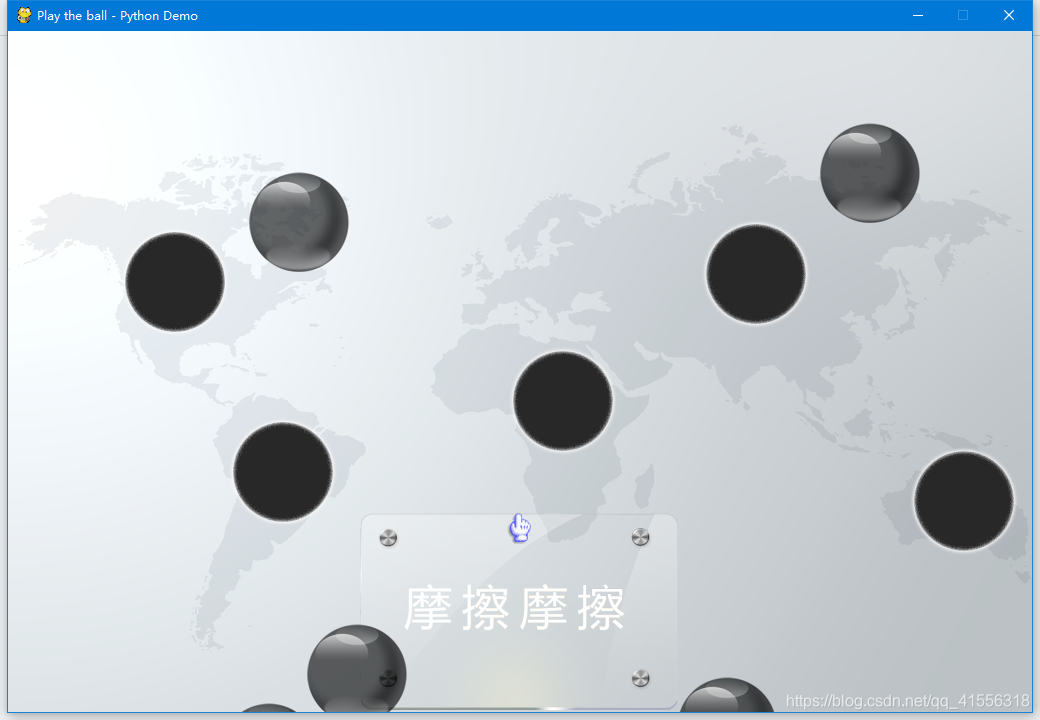
接下來我們就需要對鼠標動手了,大家也看到了,Pygame 默認的鼠標非常難看,又小又黑又土,而作為一個遊戲的話,漂亮的光標往往就是決勝的關鍵,遊戲開發注重的就是細節,現在我們就用自定義的光標圖片替換原來又小又黑又土的光標。如圖·所示:
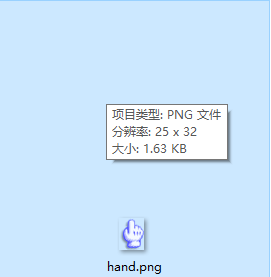
接下來要做的事就是自定義光標,然後把這個小手(光標)限制在玻璃面板內。
關於自定義鼠標的光標:
我們的做法就是使用set_visible() 方法來將光標設為不可見,然後使用get_pos() 方法獲取鼠標的實時位置,獲取之後,我們實時的把hand.png 圖片畫到這個位置上去,這樣子就相當於實現了自定義光標。
- pygame.mouse.set_visible() —— 隱藏或顯示鼠標光標
- pygame.mouse.get_pos() —— 獲取鼠標光標的位置
我們來代碼實現:
-
import pygame
-
import sys
-
from pygame.locals import *
-
from random import *
-
-
# 球类继承自Spirte类
-
class Ball(pygame.sprite.Sprite):
-
def __init__(self, image, position, speed, bg_size):
-
# 初始化动画精灵
-
pygame.sprite.Sprite.__init__(self)
-
-
self.image = pygame.image.load(image).convert_alpha()
-
self.rect = self.image.get_rect()
-
# 将小球放在指定位置
-
self.rect.left, self.rect.top = position
-
self.speed = speed
-
self.width, self.height = bg_size[0], bg_size[1]
-
self.radius = self.rect.width / 2 #增加半径属性
-
-
def move(self):
-
self.rect = self.rect.move(self.speed)
-
-
# 如果小球的左侧出了边界,那么将小球左侧的位置改为右侧的边界
-
# 这样便实现了从左边进入,右边出来的效果
-
if self.rect.right < 0:
-
self.rect.left = self.width
-
-
elif self.rect.left > self.width:
-
self.rect.right = 0
-
-
elif self.rect.bottom < 0:
-
self.rect.top = self.height
-
-
elif self.rect.top > self.height:
-
self.rect.bottom = 0
-
##############################################################
-
class Glass(pygame.sprite.Sprite):
-
def __init__(self, glass_image, mouse_image, bg_size):
-
#初始化动画精灵
-
pygame.sprite.Sprite.__init__(self)
-
-
self.glass_image = pygame.image.load(glass_image).convert_alpha()
-
self.glass_rect = self.glass_image.get_rect()
-
self.glass_rect.left, self.glass_rect.top = \
-
(bg_size[0] - self.glass_rect.width) // 2, \
-
bg_size[1] - self.glass_rect.height
-
-
self.mouse_image = pygame.image.load(mouse_image).convert_alpha()#加载小手光标
-
self.mouse_rect = self.mouse_image.get_rect()#获取小手光标矩形位置
-
self.mouse_rect.left, self.mouse_rect.top = \
-
self.glass_rect.left, self.glass_rect.top #小手光标初始在玻璃面板左上角
-
pygame.mouse.set_visible(False)#设置Pygame 光标不可见
-
-
##############################################################
-
-
def main():
-
pygame.init()
-
-
ball_image = "gray_ball.png"
-
bg_image = "background.png"
-
glass_image = "glass.png"
-
mouse_image = "hand.png"
-
-
running = True
-
-
#添加背景音乐
-
pygame.mixer.music.load('bg_music.ogg')
-
pygame.mixer.music.set_volume(0.2)#设置音量
-
pygame.mixer.music.play(1, 160)#播放
-
-
#加载音效
-
winner_sound = pygame.mixer.Sound("winner.wav")
-
winner_sound.set_volume(0.2)
-
loser_sound = pygame.mixer.Sound("loser.wav")
-
loser_sound.set_volume(0.2)
-
laugh_sound = pygame.mixer.Sound("laugh.wav")
-
laugh_sound.set_volume(0.2)
-
hole_sound = pygame.mixer.Sound("hole.wav")
-
hole_sound.set_volume(0.2)
-
-
#背景音乐会贯穿游戏的始终,背景音乐完整播放一次我们视为游戏的时间,
-
-
#音乐播放完时,游戏结束
-
GAMEOVER = USEREVENT
-
pygame.mixer.music.set_endevent(GAMEOVER)
-
-
# 根据背景图片指定游戏界面尺寸
-
bg_size = width, height = 1024, 681
-
screen = pygame.display.set_mode(bg_size)
-
pygame.display.set_caption("Play the ball - Python Demo")
-
-
background = pygame.image.load(bg_image).convert_alpha()
-
-
# 用来存放小球对象的列表
-
balls = []
-
group = pygame.sprite.Group()
-
-
# 创建五个小球
-
for i in range(5):
-
# 位置随机,速度随机
-
position = randint(0, width-100), randint(0, height-100)
-
speed = [randint(-10, 10), randint(-10, 10)]
-
ball = Ball(ball_image, position, speed, bg_size)
-
while pygame.sprite.spritecollide(ball, group, False, pygame.sprite.collide_circle):#在创建小球这里必须进行一下碰撞检测
-
ball.rect.left, ball.rect.top = randint(0, width-100), randint(0, height-100)
-
balls.append(ball)
-
group.add(ball)
-
-
###########################################################
-
glass = Glass(glass_image, mouse_image, bg_size)
-
###########################################################
-
-
clock = pygame.time.Clock()
-
-
while running:
-
for event in pygame.event.get():
-
if event.type == QUIT:
-
sys.exit()
-
-
elif event.type == GAMEOVER: #判断事件是否为我们自定义的GAMEOVER事件
-
loser_sound.play()
-
pygame.time.delay(2000)#暂停2秒
-
laugh_sound.play()
-
running = False
-
-
screen.blit(background, (0, 0))
-
#############################################
-
screen.blit(glass.glass_image, glass.glass_rect)
-
#############################################
-
#将小手光标画在Pygame 默认光标位置上
-
glass.mouse_rect.left, glass.mouse_rect.top = pygame.mouse.get_pos()
-
-
#限制光标只能在玻璃面板范围内移动(摩擦摩擦)
-
if glass.mouse_rect.left < glass.glass_rect.left:
-
glass.mouse_rect.left = glass.glass_rect.left
-
if glass.mouse_rect.left > glass.glass_rect.right - glass.mouse_rect.width:
-
glass.mouse_rect.left = glass.glass_rect.right - glass.mouse_rect.width
-
if glass.mouse_rect.top < glass.glass_rect.top:
-
glass.mouse_rect.top = glass.glass_rect.top
-
if glass.mouse_rect.top > glass.mouse_rect.bottom - glass.mouse_rect.height:
-
glass.mouse_rect.top = glass.mouse_rect.bottom - glass.mouse_rect.height
-
-
screen.blit(glass.mouse_image, glass.mouse_rect)
-
#############################################
-
-
for each in balls:
-
each.move()
-
screen.blit(each.image, each.rect)
-
-
for each in group:
-
group.remove(each) #把自身拿出来
-
-
if pygame.sprite.spritecollide(each, group, False, pygame.sprite.collide_circle):#把自己和别的球进行碰撞检测
-
each.speed[0] = -each.speed[0]
-
each.speed[1] = -each.speed[1]
-
-
group.add(each)#还要把自己放进去
-
-
pygame.display.flip()
-
clock.tick(30)
-
-
-
if __name__ == "__main__":
-
main()
下一步,讓小球響應光標的移動頻率。
我們需要讓小球響應光標一定頻率的摩擦摩擦而停下來變成綠色,就是說,鼠標在玻璃面板上摩擦,達到一定頻率的時候,某一個匹配的小球會停下來,而不是所有小球,停下來的小球就任你操作了。
我們知道,鼠標的一定會產生事件,我們可以利用這一點。假設單位時間是一秒,我們檢測一秒內鼠標在玻璃面板內產生多少事件,從而判定每一秒產生的事件數是否能夠匹配到某一個小球需要的要求。
步驟如下:
1、為每個小球設定一個不同的目標;
2、創建一個motion 變量來記錄每一秒鐘產生事件數量;
3、為小球添加一個check() 方法,用於判斷鼠標在1秒鐘內產生的事件數量是否匹配此目標;
4、添加一個自定義事件,每一秒鐘觸發一次。調用每個小球的check() 檢測motion 的值是否匹配某一個小球的目標,並將motion重新初始化,以便記錄下1秒鼠標事件數量;
5、小球應該添加一個control 屬性,用於記錄當前的狀態(綠色-> 玩家控制or 灰色-> 隨機移動)。
6、通過檢查control 屬性決定繪製什麼顏色的小球。
-
import pygame
-
import sys
-
from pygame.locals import *
-
from random import *
-
-
# 球类继承自Spirte类
-
class Ball(pygame.sprite.Sprite):
-
def __init__(self, grayball_image, greenball_image, position, speed, bg_size, target):
-
# 初始化动画精灵
-
pygame.sprite.Sprite.__init__(self)
-
-
self.grayball_image = pygame.image.load(grayball_image).convert_alpha() #加载灰色小球
-
self.greenball_image = pygame.image.load(greenball_image).convert_alpha() #加载绿色小球
-
self.rect = self.grayball_image.get_rect() #两颜色小球矩形位置是一样的
-
# 将小球放在指定位置
-
self.rect.left, self.rect.top = position
-
self.speed = speed
-
############################################
-
#1、为每个小球设定一个不同的目标;
-
self.target = target
-
#############################################
-
#5、小球应该添加一个 control 属性,用于记录当前的状态(绿色 -> 玩家控制 or 灰色 -> 随机移动)。
-
self.control = False
-
##################################################
-
self.width, self.height = bg_size[0], bg_size[1]
-
self.radius = self.rect.width / 2 #增加半径属性
-
-
def move(self):
-
self.rect = self.rect.move(self.speed)
-
-
# 如果小球的左侧出了边界,那么将小球左侧的位置改为右侧的边界
-
# 这样便实现了从左边进入,右边出来的效果
-
if self.rect.right < 0:
-
self.rect.left = self.width
-
-
elif self.rect.left > self.width:
-
self.rect.right = 0
-
-
elif self.rect.bottom < 0:
-
self.rect.top = self.height
-
-
elif self.rect.top > self.height:
-
self.rect.bottom = 0
-
############################################################################
-
#3、为小球添加一个 check() 方法,用于判断鼠标在1秒钟内产生的事件数量是否匹配此目标;
-
def check(self, motion):
-
if self.target < motion < self.target + 5:
-
return True
-
else:
-
return False
-
############################################################################
-
-
class Glass(pygame.sprite.Sprite):
-
def __init__(self, glass_image, mouse_image, bg_size):
-
#初始化动画精灵
-
pygame.sprite.Sprite.__init__(self)
-
-
self.glass_image = pygame.image.load(glass_image).convert_alpha()
-
self.glass_rect = self.glass_image.get_rect()
-
self.glass_rect.left, self.glass_rect.top = \
-
(bg_size[0] - self.glass_rect.width) // 2, \
-
bg_size[1] - self.glass_rect.height
-
-
self.mouse_image = pygame.image.load(mouse_image).convert_alpha()#加载小手光标
-
self.mouse_rect = self.mouse_image.get_rect()#获取小手光标矩形位置
-
self.mouse_rect.left, self.mouse_rect.top = \
-
self.glass_rect.left, self.glass_rect.top #小手光标初始在玻璃面板左上角
-
pygame.mouse.set_visible(False)#设置Pygame 光标不可见
-
-
def main():
-
pygame.init()
-
-
grayball_image = "gray_ball.png"
-
greenball_image = "green_ball.png"
-
bg_image = "background.png"
-
glass_image = "glass.png"
-
mouse_image = "hand.png"
-
-
running = True
-
-
#添加背景音乐
-
pygame.mixer.music.load('bg_music.ogg')
-
pygame.mixer.music.set_volume(0.2)#设置音量
-
pygame.mixer.music.play()#播放
-
-
#加载音效
-
winner_sound = pygame.mixer.Sound("winner.wav")
-
winner_sound.set_volume(0.2)
-
loser_sound = pygame.mixer.Sound("loser.wav")
-
loser_sound.set_volume(0.2)
-
laugh_sound = pygame.mixer.Sound("laugh.wav")
-
laugh_sound.set_volume(0.2)
-
hole_sound = pygame.mixer.Sound("hole.wav")
-
hole_sound.set_volume(0.2)
-
-
#背景音乐会贯穿游戏的始终,背景音乐完整播放一次我们视为游戏的时间,
-
-
#音乐播放完时,游戏结束
-
GAMEOVER = USEREVENT
-
pygame.mixer.music.set_endevent(GAMEOVER)
-
-
# 根据背景图片指定游戏界面尺寸
-
bg_size = width, height = 1024, 681
-
screen = pygame.display.set_mode(bg_size)
-
pygame.display.set_caption("Play the ball - Python Demo")
-
-
background = pygame.image.load(bg_image).convert_alpha()
-
-
# 用来存放小球对象的列表
-
balls = []
-
group = pygame.sprite.Group()
-
-
# 创建五个小球
-
for i in range(5):
-
# 位置随机,速度随机
-
position = randint(0, width-100), randint(0, height-100)
-
speed = [randint(-10, 10), randint(-10, 10)]
-
ball = Ball(grayball_image, greenball_image, position, speed, bg_size, 5 * (i + 1)) #target 设为5-30,比较适中
-
while pygame.sprite.spritecollide(ball, group, False, pygame.sprite.collide_circle):#在创建小球这里必须进行一下碰撞检测
-
ball.rect.left, ball.rect.top = randint(0, width-100), randint(0, height-100)
-
balls.append(ball)
-
group.add(ball)
-
-
glass = Glass(glass_image, mouse_image, bg_size)
-
#########################################
-
#2、创建一个motion 变量来记录每一秒钟产生事件数量;
-
motion = 0
-
#########################################
-
#4.1、添加一个自定义事件,每一秒钟触发一次。
-
MYTIMER = USEREVENT + 1 #自定义事件的知识点可以查看上一节课的末尾注解
-
pygame.time.set_timer(MYTIMER, 1000)
-
##############################################################
-
-
clock = pygame.time.Clock()
-
-
while running:
-
for event in pygame.event.get():
-
if event.type == QUIT:
-
sys.exit()
-
-
elif event.type == GAMEOVER: #判断事件是否为我们自定义的GAMEOVER事件
-
loser_sound.play()
-
pygame.time.delay(2000)#暂停2秒
-
laugh_sound.play()
-
running = False
-
-
##############################################
-
#4.2、 调用每个小球的 check() 检测 motion 的值是否匹配某一个小球的目标,并将motion重新初始化,以便记录下1秒鼠标事件数量;
-
elif event.type == MYTIMER:
-
if motion:
-
for each in group:
-
if each.check(motion):
-
each.speed = [0, 0]
-
each.control = True
-
motion = 0
-
##############################################
-
#需要计算一下motion
-
elif event.type == MOUSEMOTION:
-
motion += 1
-
##############################################
-
screen.blit(background, (0, 0))
-
-
screen.blit(glass.glass_image, glass.glass_rect)
-
-
#将小手光标画在Pygame 默认光标位置上
-
glass.mouse_rect.left, glass.mouse_rect.top = pygame.mouse.get_pos()
-
-
#限制光标只能在玻璃面板范围内移动(摩擦摩擦)
-
if glass.mouse_rect.left < glass.glass_rect.left:
-
glass.mouse_rect.left = glass.glass_rect.left
-
if glass.mouse_rect.left > glass.glass_rect.right - glass.mouse_rect.width:
-
glass.mouse_rect.left = glass.glass_rect.right - glass.mouse_rect.width
-
if glass.mouse_rect.top < glass.glass_rect.top:
-
glass.mouse_rect.top = glass.glass_rect.top
-
if glass.mouse_rect.top > glass.mouse_rect.bottom - glass.mouse_rect.height:
-
glass.mouse_rect.top = glass.mouse_rect.bottom - glass.mouse_rect.height
-
-
screen.blit(glass.mouse_image, glass.mouse_rect)
-
-
for each in balls:
-
each.move()
-
##############################
-
#如果小球的 control 属性为 True,就画绿球
-
if each.control:
-
#画绿色小球
-
screen.blit(each.greenball_image, each.rect)
-
else:
-
#画灰色小球
-
screen.blit(each.grayball_image, each.rect)
-
##############################
-
-
-
for each in group:
-
group.remove(each) #把自身拿出来
-
-
if pygame.sprite.spritecollide(each, group, False, pygame.sprite.collide_circle):#把自己和别的球进行碰撞检测
-
each.speed[0] = -each.speed[0]
-
each.speed[1] = -each.speed[1]
-
-
group.add(each)#还要把自己放进去
-
-
pygame.display.flip()
-
clock.tick(30)
-
-
-
if __name__ == "__main__":
-
main()


0 留言:
發佈留言